Photo to Cartoon AI

AI Halloween Costume Generator

Popular Photo Effects

Try Sample Images

0/1000
Credits:4

Recent Photos

Your latest cartoonize tasks stay here while they process.

View All

Loading recent tasks...

Explore three Halloween costume ideas

See everyday outfits become witch, vampire and pirate looks.

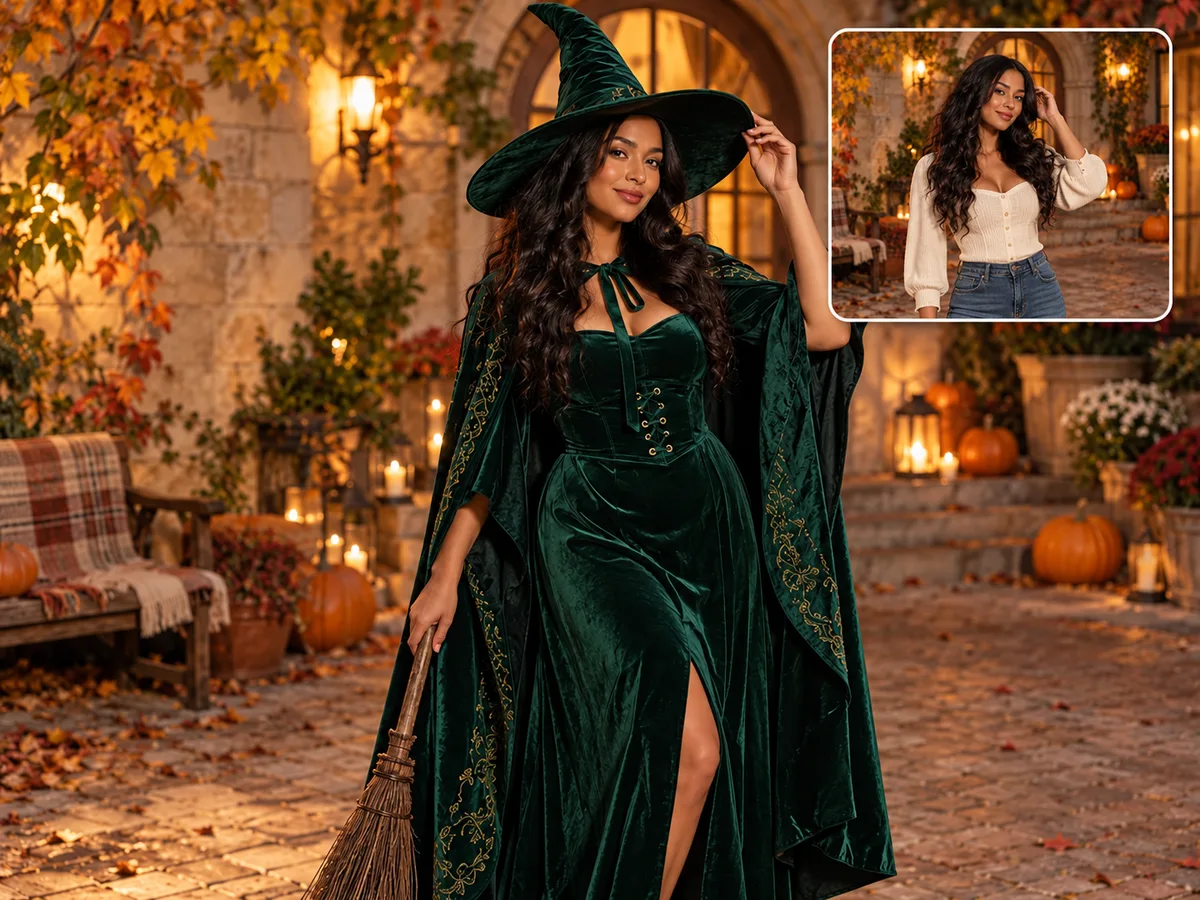
Velvet witch costume

Velvet witch costume

Try an emerald velvet dress, flowing cape and pointed hat as a witch costume for your portrait. Soft fabric and deep green tones give the outfit a storybook feel. Explore this look for a Halloween profile picture, adding a favourite brooch or hat detail to your description.
Classic vampire outfit

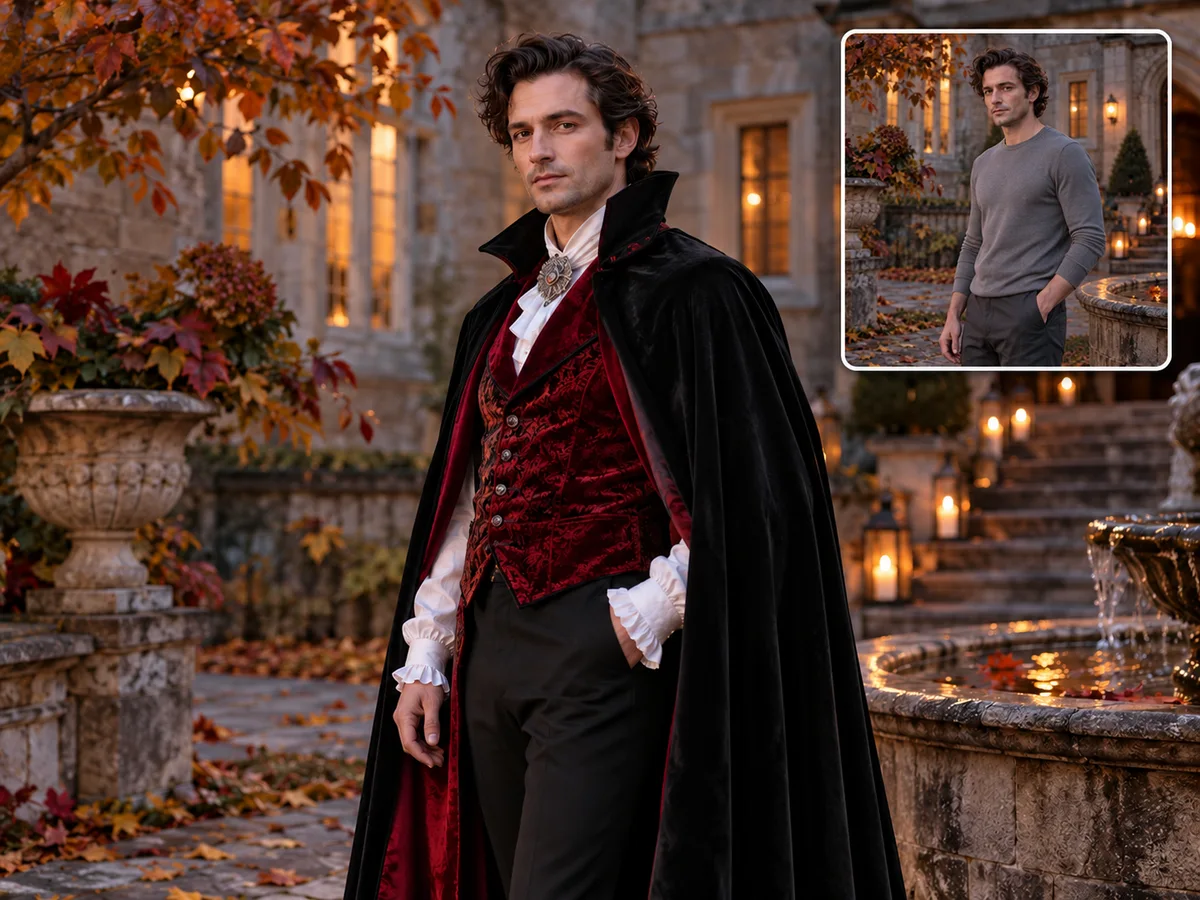
Classic vampire outfit

Give your portrait a classic vampire look with a dark cape, burgundy waistcoat and silver accents. Layered fabrics and a high collar create a theatrical silhouette with the face at its centre. For a party portrait, describe subtle jewellery or a longer cape to shape the character.

Adventure-ready pirate look

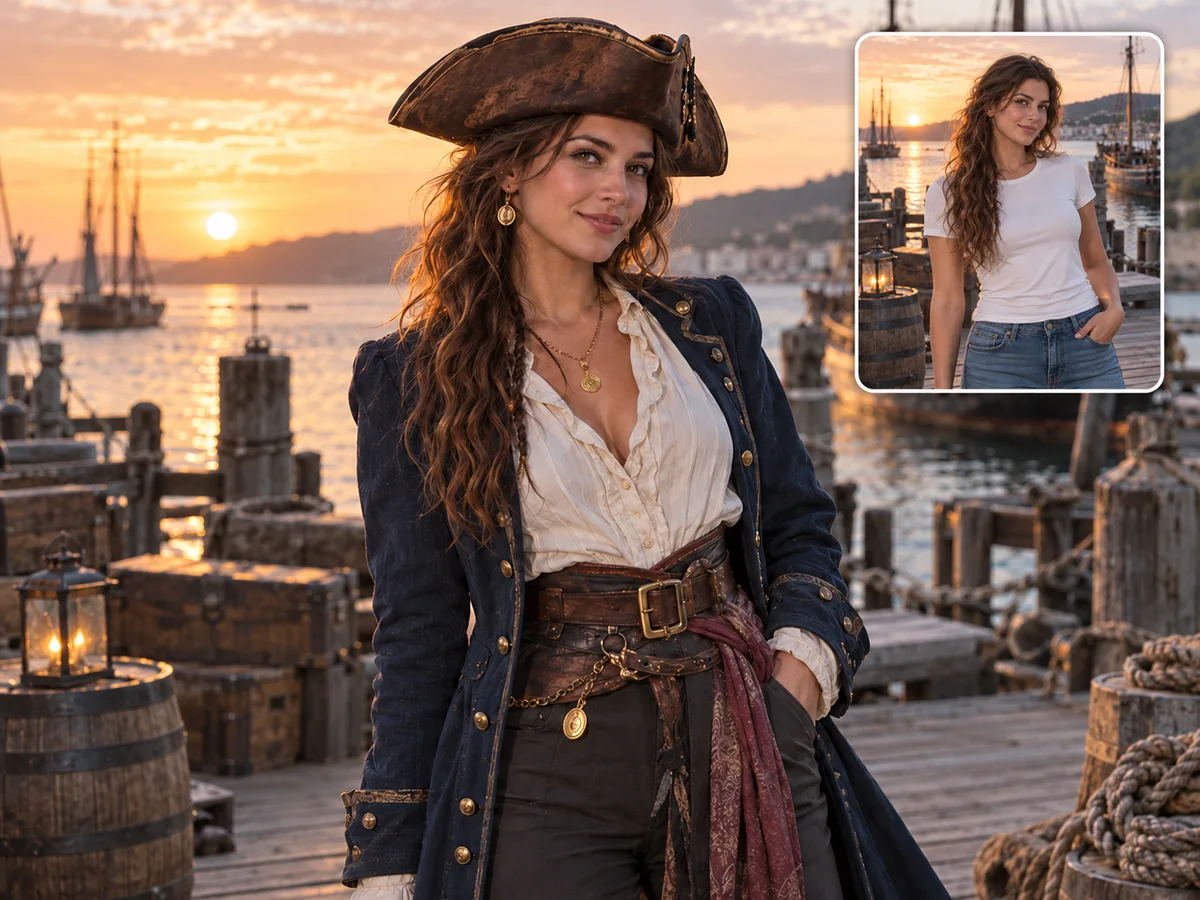
Adventure-ready pirate look

Picture a tricorn hat, navy coat and vintage accessories in a pirate portrait with a warm coastal mood. The hat and collar details give the character an adventurous feel. Try this costume idea for a themed party, adding a scarf or favourite colour to make it your own.

How to create an AI Halloween costume photo

Choose a costume, describe the clothing and accessories, and compare the result with your original photo. Start with one outfit idea at a time.

  1. 1

    Choose a photograph with usable detail

    Open cartoonize.ai and select AI Halloween Costume. Upload a clear photo that shows the part of your body you want to dress.

  2. 2

    Describe your costume

    Describe an outfit, such as a velvet cape and pointed hat. Mention its colours and accessories, plus any background or facial details to keep.

  3. 3

    Choose your image format

    Choose an aspect ratio, 1K, 2K or 4K resolution, and one to four images.

  4. 4

    Generate and download your photo

    Generate your Halloween costume portrait, preview the different looks and download your favourite version.

Try your costume idea on a photo

Upload a photo and turn your witch, vampire or pirate costume idea into a Halloween portrait.

Create a costume portrait

AI Halloween costume questions

Find answers about costume choices, source photos and generated portraits.

What happens if I leave the instructions blank?

The costume effect uses a witch or wizard direction with a dark velvet cape and a pointed hat. If you have another look in mind, describe it in the optional instructions before generating. The default aims to keep the person's face, pose and background recognizable while changing clothing and accessories. It is not a random costume picker, and the exact garments or colours can vary between generations.

Can I change only the clothes and keep the background?

That is the intended focus of this effect. The base instructions ask to keep the source background unless you request a different setting, and to avoid face paint unless you ask for it. State the details that matter most, such as keeping a familiar hairstyle or leaving the room unchanged. Treat those as instructions for the model rather than an exact editing mask: review the full image because details outside the outfit can still change.

Will the person still look exactly the same?

The effect instructions ask the model to preserve recognizable features, the pose and important details, but exact identity preservation is not guaranteed. Lighting, paint, accessories or a major change in framing can affect the face. Use a sharp source with visible eyes and avoid requesting several conflicting transformations. Compare the result with the original before sharing it. If likeness matters more than the effect, choose a gentler description and keep the face unobstructed.

How do Credits and resolution work?

A 1K image costs 4 Credits, 2K costs 8 and 4K costs 12. Multiply the price by the number of images; for example, two 2K images cost 16 Credits.

Why is my image different from what I described?

Generation involves interpretation, so a request may miss a detail or introduce an unwanted change. Common causes include unclear source photos, a face hidden by an object, an outfit outside the crop or conflicting instructions about what to keep. Identify the most important mismatch and rewrite that part of the prompt. Keep the rest of the request stable so you can compare the next version. The tool is for creative exploration, not exact product fitting or documentary editing.

Can I make a profile picture or party invitation?

You can create an image to include in those designs and choose a suitable aspect ratio before generating. For an avatar, leave room around the face because social platforms may crop it into a circle. For an invitation, leave a quiet area for text and add the actual date, address and wording in your layout editor afterwards. Review any automatically generated lettering carefully. Use photos you are entitled to edit, and get the people pictured involved before sharing a transformed portrait.