Photo to Cartoon AI

Halloween Filter for Your Photos

Popular Photo Effects

Try Sample Images

0/1000
Credits:4

Recent Photos

Your latest cartoonize tasks stay here while they process.

View All

Loading recent tasks...

Three ways to add Halloween atmosphere

Compare your original portrait with spooky makeup, pumpkin lighting and mist.

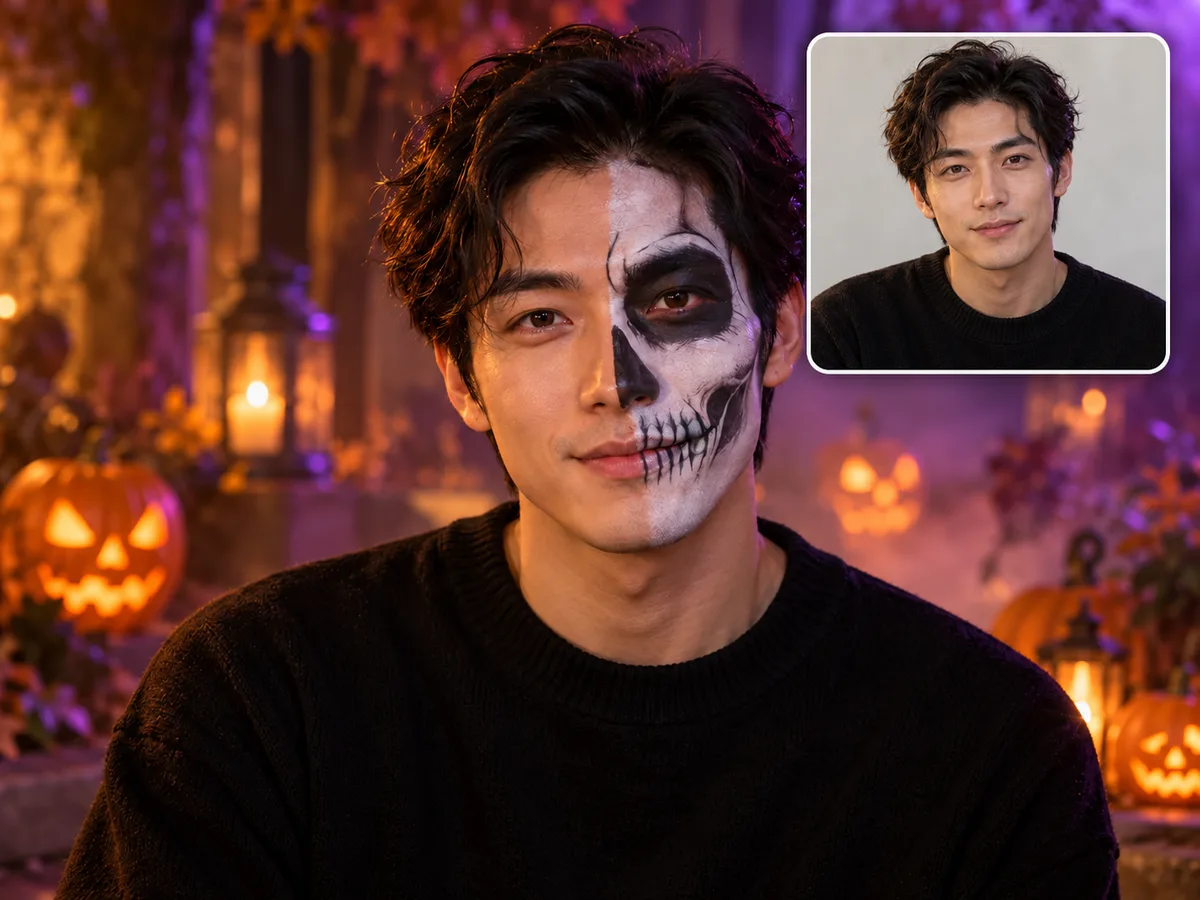
Skull face paint

Skull face paint

Add detailed skull face paint and orange-purple lighting to a simple portrait. Dark eye contours and pale lines make the face the focal point, with everyday clothes as the base. Try this Halloween look for a striking profile picture, or request half-face makeup for a lighter touch.
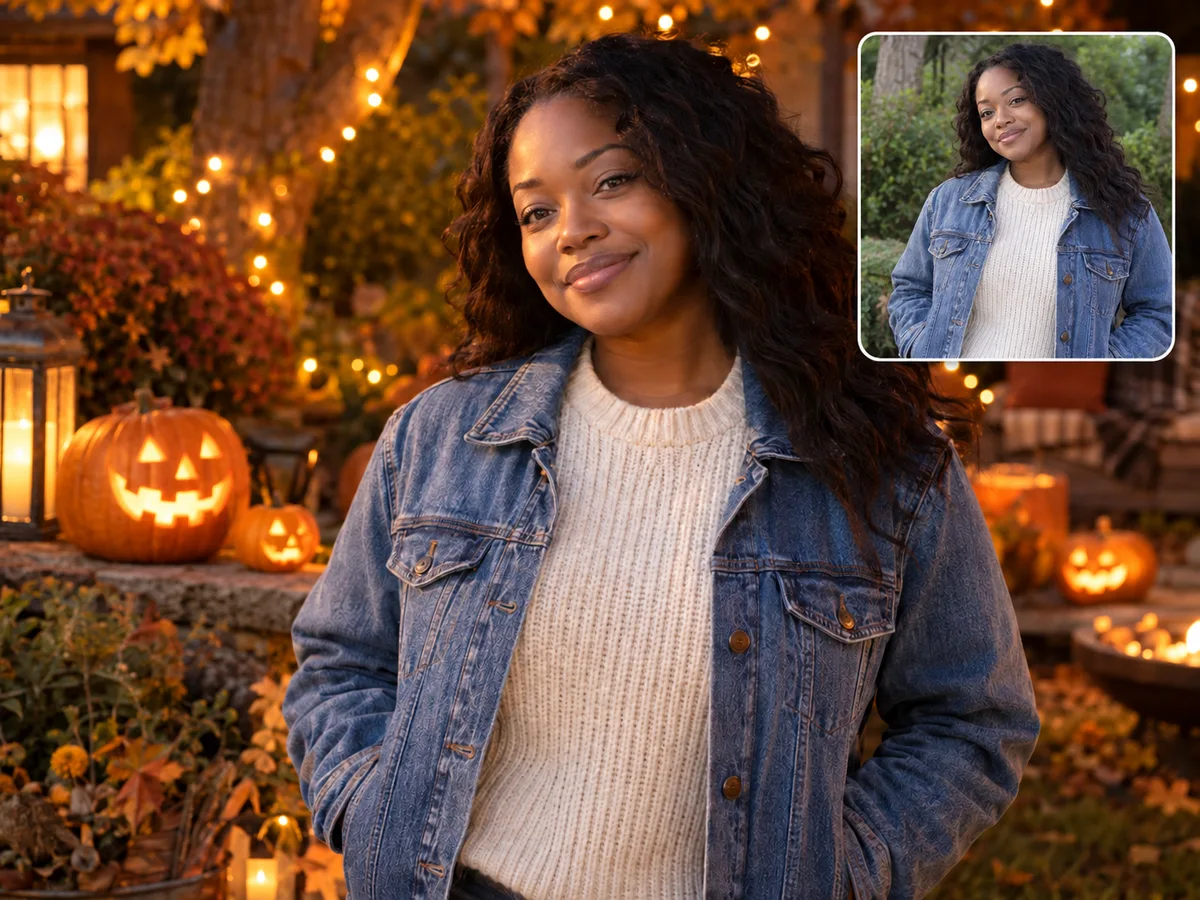
Warm pumpkin glow

Warm pumpkin glow

Frame your portrait with glowing pumpkins and soft amber light for a welcoming Halloween scene. Golden tones complement everyday clothes without spooky makeup. Try a few lanterns for a subtle seasonal profile picture, or more pumpkins for a fuller party backdrop.

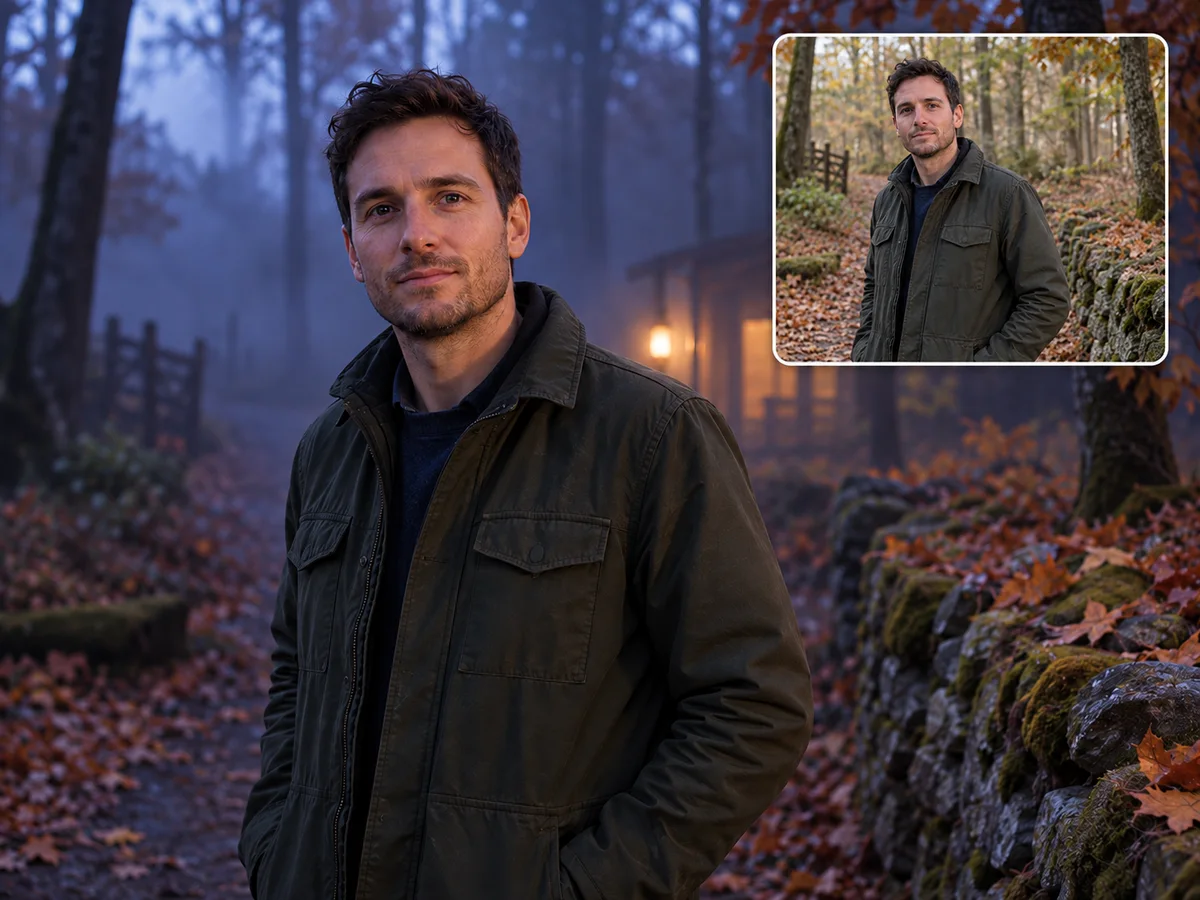
Misty night portrait

Misty night portrait

Give a daylight portrait a mysterious nighttime mood with blue-violet tones and a misty woodland backdrop. Cool light and haze add depth, while the original clothes connect the scene to your photo. Describe thin mist for a subtle Halloween portrait or dense fog for a cinematic setting.

How to apply a Halloween filter to a photo

Choose the mood for your Halloween photo: warm pumpkin light, a misty night or theatrical makeup. Describe the effect and keep the details you like.

  1. 1

    Choose a clear portrait

    Open cartoonize.ai and select Halloween Filter. Upload a well-lit portrait with visible eyes; your everyday clothes can stay as the starting point.

  2. 2

    Describe your Halloween effect

    Describe pumpkin lighting, violet mist or skull face paint. Request makeup explicitly; leave the instructions blank for pumpkin light and atmosphere without face paint.

  3. 3

    Choose your image format

    Choose an aspect ratio, 1K, 2K or 4K resolution, and one to four images.

  4. 4

    Generate and download your photo

    Generate your Halloween photo, preview the effect and download your favourite version.

Give your photo a Halloween mood

Add pumpkin light, a misty night or expressive face paint to your photo for a Halloween avatar or party design.

Create a Halloween photo

Halloween filter questions

Find answers about photo effects, face paint and ways to use your Halloween images.

Is this a live camera or video filter?

No. This page edits an uploaded still photo and generates a new image. It does not track a face through a live camera feed or apply an effect across video frames. Choose a photograph with the expression and framing you want to use. If you are planning a social post, generate the still image here and assemble any motion, captions or audio in a separate editing workflow.

Does it automatically add makeup or change my costume?

With no extra instructions, the effect asks for gentle pumpkin lantern light and an atmospheric Halloween background, without face paint. Add makeup explicitly if you want it, for example a restrained skeleton design. The base request aims to keep the existing clothes and recognizable facial features. If you want a different outfit too, state that clearly or use the costume effect, where clothing is the main focus.

Will the person still look exactly the same?

The effect instructions ask the model to preserve recognizable features, the pose and important details, but exact identity preservation is not guaranteed. Lighting, paint, accessories or a major change in framing can affect the face. Use a sharp source with visible eyes and avoid requesting several conflicting transformations. Compare the result with the original before sharing it. If likeness matters more than the effect, choose a gentler description and keep the face unobstructed.

How do Credits and resolution work?

A 1K image costs 4 Credits, 2K costs 8 and 4K costs 12. Multiply the price by the number of images; for example, two 2K images cost 16 Credits.

Why is my image different from what I described?

Generation involves interpretation, so a request may miss a detail or introduce an unwanted change. Common causes include unclear source photos, a face hidden by an object, an outfit outside the crop or conflicting instructions about what to keep. Identify the most important mismatch and rewrite that part of the prompt. Keep the rest of the request stable so you can compare the next version. The tool is for creative exploration, not exact product fitting or documentary editing.

Can I make a profile picture or party invitation?

You can create an image to include in those designs and choose a suitable aspect ratio before generating. For an avatar, leave room around the face because social platforms may crop it into a circle. For an invitation, leave a quiet area for text and add the actual date, address and wording in your layout editor afterwards. Review any automatically generated lettering carefully. Use photos you are entitled to edit, and get the people pictured involved before sharing a transformed portrait.